![Foxo-logo.png]](https://help.foxo.com/hs-fs/hubfs/Foxo-logo.png?height=40&name=Foxo-logo.png)
💡 Group Messages allow multidisciplinary teams to collaborate beyond their Organisation while securely sharing patient information. 👥
1️⃣ Open the group message thread from your Messages list in the left navigation.
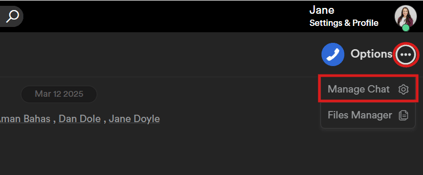
2️⃣ Click the three dots icon in the top-right corner of the thread, then select Options.
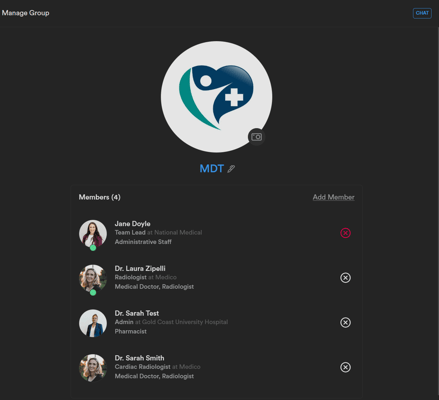
3️⃣ From the Options panel, you can:
- Add or remove members — search for contacts to add, or remove existing participants.
- Rename the chat — update the group name to reflect the clinical context.
- Upload a group image — choose an image to help members identify the group at a glance.
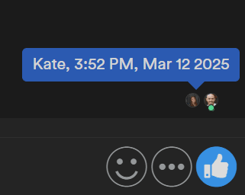
💡 Foxo Tip: Message read-receipts appear as the recipient’s profile image next to the last message, showing who has read your message and when.
Use @mentions to notify specific members
In any group chat, type @ followed by a contact's name to send them a direct notification, without needing to message them separately.
Leave or archive a group chat
To leave or archive a group chat, click the arrow icon to expand the thread options. You will see two options:
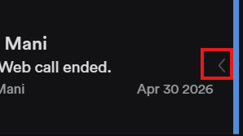
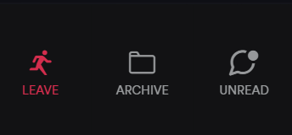
- Leave — removes you from the group chat.
- Archive — moves the thread out of your active Messages list. Archived threads remain open to new activity and restore automatically if a new message arrives.
- Unread — flags the thread so it appears unread in your Messages list, useful for following up later.
Something not working?
- Options is not visible — confirm you are viewing a group thread, not a 1:1 message. The Options menu only appears in group chats.
- Cannot add a contact — the contact may not be connected to you on the Foxo network yet. Ask them to accept your contact request first.
- Group image is not saving — confirm the file is a JPG or PNG and is not too large.
FAQ
How do I start a new group chat? Click the + icon next to Messages in the left navigation, select two or more contacts, then click the blue tick icon. See Messaging (Single and Group) for full steps.
Can group chats include people from outside my Organisation? Yes. Group messages can include health professionals from other Organisations on the Foxo network.